


Safes - Parental Control
2.922.00 Reviews
App Specs
- Version
- 3.1.6
- Updated On
- License
- Free
- Downloads
- 1,000,000+
- Developer
- SternX Technology GmbH
- Categories
- Parenting
- Platform
- Android, iOS
Screenshots
 Analysis by AppCompare
When I look at a parental-control app, I do not begin with the promise of “keeping kids safe.” I begin with a more practical question: what will a parent actually be able to see, limit, or change, and how much control remains in the family’s hands? Safes – Parental Control, developed by SternX Technology GmbH, is aimed at that everyday problem. It is a free parenting app with optional in-app purchases, and its purpose is to help families manage children’s online use from a parent’s phone.
My overall impression is cautious rather than enthusiastic. Safes has the right focus for parents who want a dedicated control layer instead of relying only on the basic settings built into Android or iOS. At the same time, its average rating of 2.9 from roughly seven hundred ratings suggests that the experience has not been consistently smooth for everyone. That does not automatically make it a poor choice, but it does mean I would install it with realistic expectations and test the important controls before depending on it during a busy school week.
What Safes is really trying to solve
The strongest use case is a household where a child has a personal device and the parent wants one place to establish boundaries. That might mean reducing late-night access, keeping younger children away from unsuitable material, or creating a clearer routine around schoolwork and entertainment. The app belongs squarely in the parental control category, rather than being a general family calendar, messaging tool, or child-development app.
That distinction matters. A parental-control service is not a substitute for conversations about privacy, strangers, scams, or oversharing. It is a practical layer around those conversations. I see Safes as most useful when the parent explains the rules first and uses the app to make those rules easier to follow, not when it is treated as an invisible surveillance system.
The app is free to install and is suitable for Everyone, which makes it approachable for families comparing options. Optional purchases range from about six dollars to around sixty dollars per item, so I would pay attention during setup and before activating anything beyond the basic experience. A free download can be convenient, but it should not be confused with every useful capability being permanently free.
SternX Technology GmbH has kept the product focused on the safety question, and the current version, 3.1.6, indicates that the app is an actively maintained product rather than an abandoned utility. It supports Android 7.0 and later, which covers many older phones still used as hand-me-down devices. That is helpful for families whose children do not have the latest hardware, although compatibility alone does not guarantee that every control will behave identically on every phone.
Trust starts with the setup experience
The first important moment is not the dashboard. It is the installation and pairing process. Parents should slow down here, read every prompt, and distinguish between the parent device and the child device. A rushed setup can lead to the wrong profile being managed or to rules being created without a clear understanding of who can change them later.
Worth Reading Before You Choose

Flipboard Shows What News Apps Must Do Beyond the Feed

Switching to Android Auto Means Rethinking Your Driving Routine

Google Calendar Makes a Crowded Week Easier to Manage

Ludo King Makes the Most of the Minutes Between Plans

Baby Panda World Brings Quick Play to Modern Phones, but Its Game Library Feels Busy

ESPN’s Live Game View Makes Following Close Games Easier
I would also involve an older child in the explanation. Tell them which boundaries are being applied, what the purpose is, and when exceptions can be requested. That approach gives the app a defined role in the family instead of making it feel like an unexplained technical trap. For younger children, the conversation can be simpler, but the principle is the same: controls work better when the household understands them.
Trust also depends on account recovery. Before relying on Safes, I would confirm which parent account is used, whether another trusted adult can participate, and how access is restored if the parent changes phones. These are not glamorous details, but they become critical when a child needs access to a device and the main parent phone is unavailable.
Controls are valuable only when they are understandable
A good parental-control app should make the difference between a rule and an emergency action obvious. A scheduled boundary is something the family agrees to in advance. A one-time adjustment is different: perhaps homework is finished early, a child is traveling, or a relative needs to borrow the device. I would look for that distinction while using Safes rather than assuming every change is permanent.
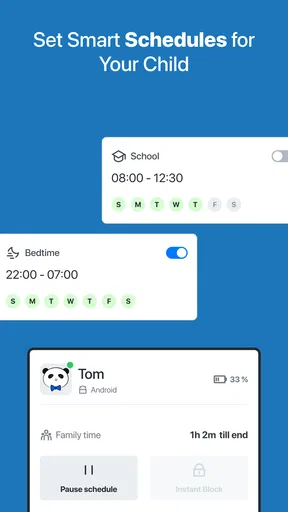
One practical workflow is to create a normal weekday routine first, then test it on a quiet evening. Do not begin by applying the strictest possible restrictions to every situation. Start with the smallest set of rules that addresses the real problem, observe how the child’s device behaves, and only then add more. This reduces the chance of blocking a school resource, a family call, or a legitimate activity.
Another useful habit is to review the settings together once a week. A child’s schedule changes, school projects require different websites, and family arrangements do not stay fixed. A control that was sensible during term time may be unnecessarily restrictive during a holiday. Treating the app as a living family agreement is more effective than setting it once and forgetting it.
I would be particularly careful with any feature that affects access to communication or essential services. A blanket restriction can create an unintended problem if a child needs to contact a parent, reach a trusted adult, or use a school platform. Before applying a broad rule, test the exact situation on the child’s device and keep a simple backup plan for urgent contact.
Everyday scenario: the school-night test
Imagine a parent whose child keeps watching short videos after bedtime. The parent installs Safes, sets up the family arrangement, and creates a school-night boundary. The sensible next step is not to wait until the following morning to discover whether the device is still usable. The parent should test the rule before bedtime, check whether permitted school or communication tools remain available, and explain what happens when the boundary begins.
If the child needs extra time for a project, the parent can decide whether to make a temporary adjustment rather than dismantling the whole routine. That is where parental-control apps can be more useful than repeatedly confiscating a phone: the boundary becomes predictable, and the parent does not have to negotiate from scratch every night.
There is also a less obvious lesson here. The app should not become the only source of discipline. If the child learns that every limit can be challenged until a parent changes it, the system loses consistency. I would set a small number of clear exceptions, explain them in advance, and avoid changing rules impulsively simply because the child is frustrated.
Privacy deserves a deliberate review
Any app that helps a parent supervise a child’s device enters a sensitive part of family life. I would therefore review the permission prompts and account choices carefully instead of approving everything automatically. The important questions are practical: which access is necessary for the controls I plan to use, which settings can be adjusted later, and which family members can see or change the account?
I would also check the app’s visible privacy information before creating profiles for children. Parents should know what choices are presented during setup and should avoid entering more personal information than the service requires for the intended use. If a family has a particularly privacy-conscious approach, it may prefer to begin with the narrowest set of controls and expand only when there is a clear reason.
The sensitive moments are easy to overlook. A parent may change a rule while angry, review activity while the child is watching, or leave an account signed in on a shared device. Those are not merely technical issues. They affect the relationship between parent and child. I would use a private parent device, protect the parent account, and make changes calmly and intentionally.
For teenagers, transparency becomes even more important. Monitoring that is hidden can damage trust, while a clearly explained boundary gives the teenager a chance to discuss why it exists. Safes can support a family agreement, but it cannot decide where that agreement should end. That judgment belongs to the parent and should reflect the child’s age, maturity, and actual risk.
How it compares with built-in family controls
Android and iOS already include family-safety tools, so Safes has to justify the extra layer. The built-in options are often the better starting point for a parent who wants basic screen-time limits, app approvals, or account-level restrictions without installing another service. They are integrated into the operating system and can feel less complicated when the family uses only one platform.
Safes becomes more interesting when a parent wants a dedicated parenting interface or prefers to manage the child’s digital routine through an app designed specifically for that purpose. The trade-off is additional setup, another account relationship, and another place where a parent must review privacy choices. I would not install it simply because it sounds more powerful; I would install it when the built-in tools have proved too scattered or too limited for the household’s routine.
It is also worth comparing it with router-level filters and security software. A router can cover many devices in the home, but it may not help when the child uses mobile data away from home. A device-focused parental-control app can be more relevant for that situation, yet it may require closer attention to the child’s phone and to the permissions needed for its controls. Neither approach is universally better.
Families with children who use several operating systems should test the exact combination before paying for anything. The parent’s phone, the child’s phone, and any tablets may not offer the same experience. I would begin with one child device, verify the essential workflow, and only then expand the arrangement to additional devices or children.
Where the experience may become frustrating
The rating of 2.9 is the clearest warning sign I would not ignore. It indicates a mixed reception, and parental-control apps are especially vulnerable to frustration because they sit between two devices, an account, operating-system restrictions, and a child who may actively test the boundaries. A rule that works in one situation but fails after a phone update can quickly undermine confidence.
That is why I would not judge Safes only by its first successful setup. I would test a normal restriction, a permitted exception, a parent-account change, and a restart of the child’s device. I would also check what happens when the child is offline or switches between Wi-Fi and mobile data, if those situations matter to the family. The goal is not to stress the app endlessly; it is to discover whether the household’s most important rule is dependable.
Another source of friction is over-control. Parents sometimes add every available restriction because the app makes it possible. That can produce false positives, blocked homework, and constant requests for permission. Safes is likely to be more manageable when used for a few clearly defined problems rather than as an attempt to supervise every minute of a child’s digital life.
The optional purchase range also deserves attention. I would identify which functions are available without payment, note what triggers a purchase screen, and decide whether the paid level solves a real family problem. A subscription or one-time purchase is easier to justify when it replaces a repeated manual task; it is harder to justify when it adds complexity without improving the specific routine the parent needs.
Who should use it, and who should skip it
I think Safes is worth considering for parents who want a dedicated parental-control app, have a clear reason for adding one, and are willing to spend time testing the setup. It may suit a family handing a first smartphone to a child, especially when the parent wants boundaries around school nights and online access without relying entirely on verbal reminders.
It is less suitable for a parent who expects effortless installation and perfect enforcement without ongoing involvement. It is also not the right choice for someone who wants a completely invisible monitoring tool. A healthy family setup requires communication, and a parent uncomfortable with reviewing permissions, account access, and rule behavior may be better served by simpler built-in controls.
I would skip it initially if the family only needs one basic restriction that the phone already provides. In that case, adding Safes may create another layer to maintain without delivering enough benefit. I would also postpone installation if the parent has not decided what behavior they are trying to change. Technology cannot compensate for unclear rules.
On the other hand, families that have already tried operating-system settings and found them difficult to manage may appreciate having a more focused parenting tool. The decision should come from that concrete experience, not from the install count or the promise of comprehensive safety. Safes has passed the one-million-install mark, which shows broad interest, but popularity does not remove the need for a careful household trial.
A sensible way to start
My recommended approach is gradual. Install the free version, establish the parent account, and write down the two or three boundaries that matter most. Avoid changing everything at once. Test each important rule on the child’s actual device, including the times when the child is at school, away from home, or using a different connection.
Before involving a second parent or guardian, decide who is allowed to alter rules and how disagreements will be handled. If several adults can make changes without coordination, the child may receive inconsistent instructions. A short family agreement can prevent that: what is restricted, when exceptions are allowed, and how a child asks for one.
After a week, review whether the app reduced conflict or simply moved the conflict into permission requests. If the routine is calmer and the controls behave as expected, Safes may be earning its place. If the family spends more time troubleshooting than benefiting, the built-in tools or a simpler alternative may be the better answer.
Finally, keep the app updated and revisit the arrangement when the child’s needs change. The current release is 3.1.6, and software behavior can evolve, so I would recheck the key controls after updates rather than assuming yesterday’s setup still behaves exactly the same way. That small habit is especially important when the app is being used for bedtime, school access, or emergency communication.
My cautious verdict
Safes – Parental Control has a useful place in the parenting-app landscape, but I would describe it as a tool to evaluate rather than an automatic recommendation. Its free entry point, Everyone age rating, support for older Android versions, and focused purpose make it accessible to many families. The developer has built something aimed at a real everyday concern, and a dedicated interface can be more convenient than scattered device settings.
Still, the mixed average rating makes testing essential. I would not pay for extra functions until the basic parent-child workflow works reliably on the devices in the home. I would also keep privacy and account control at the center of the decision, because a safety app should give parents useful choices without encouraging careless data sharing or secretive family habits.
My recommendation is therefore conditional: try Safes if you have a specific supervision problem and are prepared to configure it thoughtfully. Use the smallest set of restrictions that solves that problem, explain the arrangement to your child, and verify the important behavior yourself. If the app makes the family’s routine clearer and calmer, it can be worthwhile. If it adds uncertainty, repeated troubleshooting, or more control than your family actually needs, the simpler built-in alternative is probably the wiser choice.
Pros
- Clear activity reports help parents understand daily device use.
- Custom routines make it easier to balance school
- rest
- and entertainment.
- Location tools can provide reassurance when children are away from home.
- The interface is approachable for parents with limited technical experience.
- Useful controls for managing access to potentially unsuitable content.
Cons
- Some features may require a paid subscription or premium plan.
- Children may find ways around restrictions if device settings are not secured.
- Location tracking can affect battery life and raise privacy concerns.
- Initial setup may take time across multiple child devices.
- Effectiveness depends on stable internet access and compatible devices.
FAQs for Safes - Parental Control
What is Safes - Parental Control and what can it do?
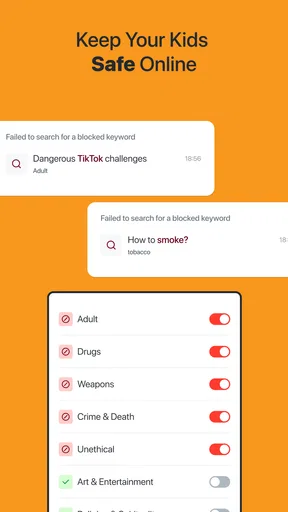
Safes - Parental Control is designed to help parents supervise and manage their children’s digital activity from a central dashboard. After setup, it can typically provide tools such as screen-time scheduling, app and website restrictions, activity reports, location-related features, and alerts. The exact options may depend on the child’s device, operating system, subscription plan, and regional availability.
Does Safes - Parental Control work on both Android and iPhone?
Safes supports parental-control management across compatible Android and iOS devices, but the experience is not always identical on both platforms. Apple’s system permissions can limit certain monitoring and blocking functions, while Android may require additional accessibility, device-administrator, or background permissions. Before downloading, check the current store listing and compatibility requirements for both the parent and child devices.
Can parents limit screen time and block applications or websites?
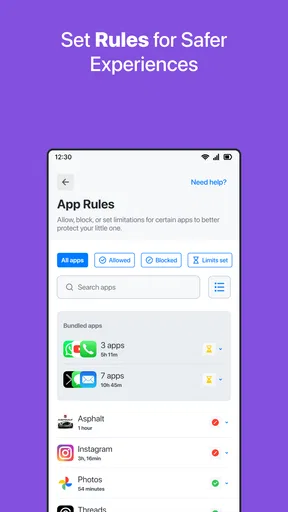
One of the main reasons to use Safes is to establish healthier device routines. Parents can generally create daily limits, bedtime schedules, study periods, and restrictions for selected apps or websites. During testing, these controls are most useful when configured carefully rather than applied all at once. Children may receive warnings before a limit is reached, depending on the device and selected settings.
Does Safes - Parental Control track a child’s location?
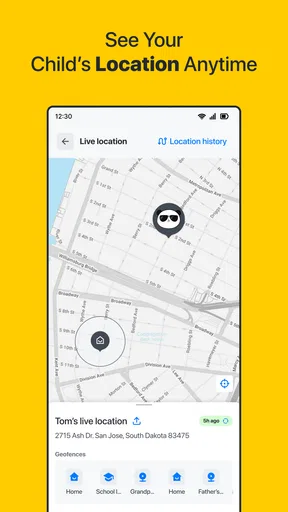
Safes may include family-location or location-monitoring features on supported devices, allowing parents to view a child’s reported position and, in some cases, create alerts for places or movements. Location accuracy depends on GPS, Wi-Fi, mobile data, battery settings, and permission status. Parents should explain this feature to children and review local privacy laws before enabling continuous location tracking.
Is Safes - Parental Control free, and is it safe to use?
Safes may offer a free download or trial, while advanced controls and monitoring tools can require a paid subscription. Review the pricing, renewal terms, trial conditions, and cancellation process before confirming payment. The app also requires sensitive permissions to perform parental-control functions, so parents should read its privacy policy, use strong account security, and download only the official version from Google Play or the App Store.


